
Your scheduling page is often a first touchpoint. Matching it to your brand builds trust, improves conversions, and looks professional.
What you can customize
Primary brand color for buttons and highlights
Company logo display
Background image or gradient
Centralized Branding in the main menu
Paid plans: lock styling across all team pages
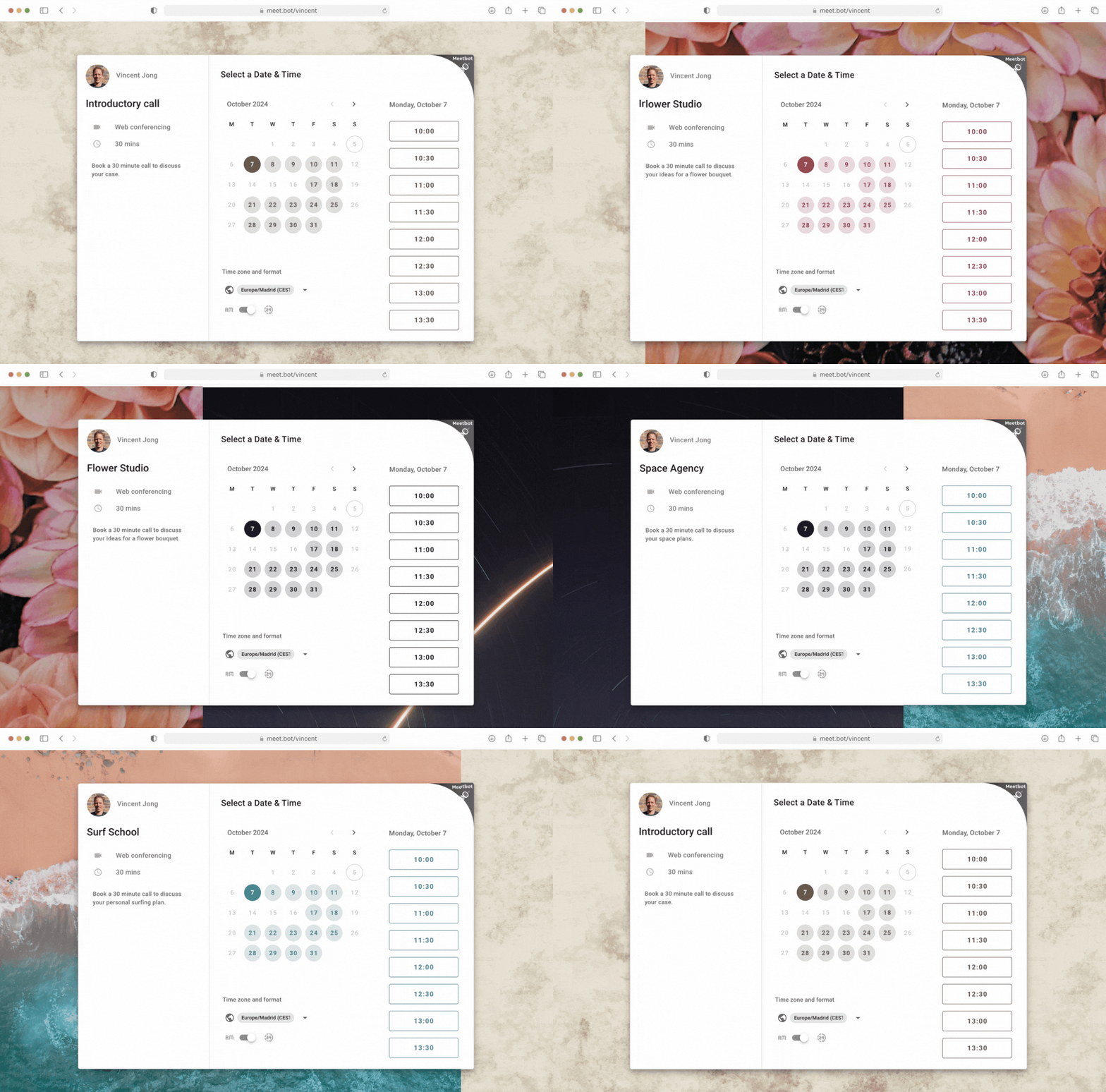
How to personalize from a page
Open editor: go to meet.bot/pages and click EDIT.
Open “Styling.”
Primary color: enter a HEX code or use the picker; this controls buttons and key highlights.
Background: click “Change background image” to upload your own; use high‑resolution, subtle visuals you have rights to.
Logo: toggle “Show logo” on; the logo comes from Branding.
Save and preview for readability and contrast.
Manage brand assets centrally (recommended)
In the main menu, open Branding.
Upload your logo (transparent PNG/SVG).
Set your official HEX brand color.
Add a default background.
New pages inherit these defaults for quick, consistent setup.
Team‑wide control (paid plans)
Admins can lock the logo, color, and backgrounds so every team page stays on‑brand.
Why it matters
Builds trust and recognition
Saves time by configuring once for an entire team
Improves conversions with clear, consistent CTAs
Ensures professionalism and speed at scale
Tips
Keep backgrounds subtle and text high‑contrast (WCAG friendly)
Use one primary color consistently
Related: “Configuring your Meet.bot scheduling page” covers titles, details, availability, and other booking settings. Use this article to focus on styling and branding.