
You can embed your Meet.bot scheduling page directly into your own website using our iframe. This can be helpful if you want visitors to stay on your site while booking a meeting, without being redirected to an external link.
A common use case is when someone fills out a form on your site, such as a demo request or contact form. Instead of only showing a “thank you” message, you can display your scheduling page right on the confirmation screen, so people can instantly pick a time to meet with you. This dramatically increases conversion.
Example workflow
A visitor fills out your form (e.g., requesting a demo).
After the form submission, they are redirected to a “thank you” page on your site.
On this page, you embed your Meet.bot scheduling page inside the iframe.
The visitor can immediately select a time, without having to leave your site.
Iframe embed code
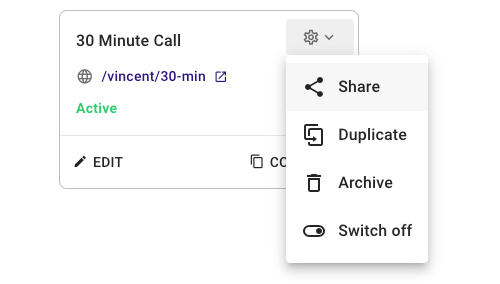
The iframe code snippet looks like below. You can easily copy the embed code for your specific scheduling page by going to My Pages, clicking the cog icon on the top right of you page, and click Share.
Tips
Test the iframe on both desktop and mobile to make sure it looks good at different screen sizes.
Consider adding a short message above the iframe (e.g., “Pick your preferred time below”) so users understand what the scheduling component is for.
If your website uses redirects after form submission, ensure the iframe code is placed on the destination page.
With this setup, you’ll reduce friction for new leads and customers by letting them book a meeting immediately after they show interest.